Starting a group
Create the group, choose how it plays, then send your mates the invite.
Create the group
- Sign in and tap Create a Group. Already in a group? Open More, tap your active group at the bottom, then + Join or create another group.
- Under How does this group play?, pick Champ Season for a full season with a leaderboard and a trip pot, or Champ Day for one-off days.
- Enter a Group Name. The season name is optional.
- On a Champ Season, set your group’s line under Your group’s stakes. Answer two questions (how much you’d be OK being down after a whole season, and whether the group is Just for fun, Competitive or For blood) and the app suggests a line. Or type your own number in Threshold ($); I know what I want → hides the questions. It shows what a great round, a shocker and a birdie would be worth off your handicap.
- Still on a Champ Season, under How should this season play?, choose The full game or Keep it simple (to start). The simple start keeps blunders off until your first period ends, then switches them on. Switch them on sooner in Scoring Modules if you like; once you change the modules yourself, your choice sticks.
- Tap Create Group (on a Champ Day, Create Champ Day Group).
The season starts straight away and runs to the end of the year. You can move the end date in Group Settings.
Invite your mates
The next screen shows your invite code. Tap it to copy it, or tap 📤 Share with Mates. The invite link and code stay in More → Group Settings, under Share this group. See Members and invites.
Set up the pot
On a Champ Season, Set up the group pot walks you through where mates pay in. It takes a few minutes, you can finish it any time, and the season runs without it. Golf Champs never holds the money. See Trip Pot.
First things to check
Tap Continue to Group → (the four-screen walkthrough runs first if you haven’t seen it), then open More → Group Settings:
- Period Length: how often balances reset. A new season starts on monthly.
- Scoring Modules: which parts of the scoring your group plays. Stableford is always on.
- Pot Goal ($) and Monthly Fee ($): what the trip pot is aiming for, and what each player pays in.
Tap Save Settings when you’re done. Group Settings explains every part.
Where your tools live
- Group Settings: the season, players, scoring, Majors and Award Night.
- Announcements: post a notice and see who’s read it.
- Polls: find a date everyone can play. Only admins can start one.
- Round History: fix a card that went in wrong; the app reworks everything that round touched.
A Champ Day group has no season to set up. You start each day yourself: see Champ Day.
Good to know
Do I have to play?
No. In Group Settings → Player Management, tap 🎫 Organiser on your own row and you’re hidden from the boards. ⛳ Playing switches you back.
Can someone help me run it?
Yes. As the owner, tap 🔑 Make admin on their row in Player Management. Admins can change settings and fix rounds. Only the owner hands out admin, sets up the pot account and can hand the group over.
Can I change the line later?
Yes, in Group Settings. With Tell the group when settings change on, everyone else gets an email showing the old value beside the new one.
What happens when the season ends?
End it in Group Settings → Season Management. The standings are kept under Past Seasons, and you can start a new season with the same players.
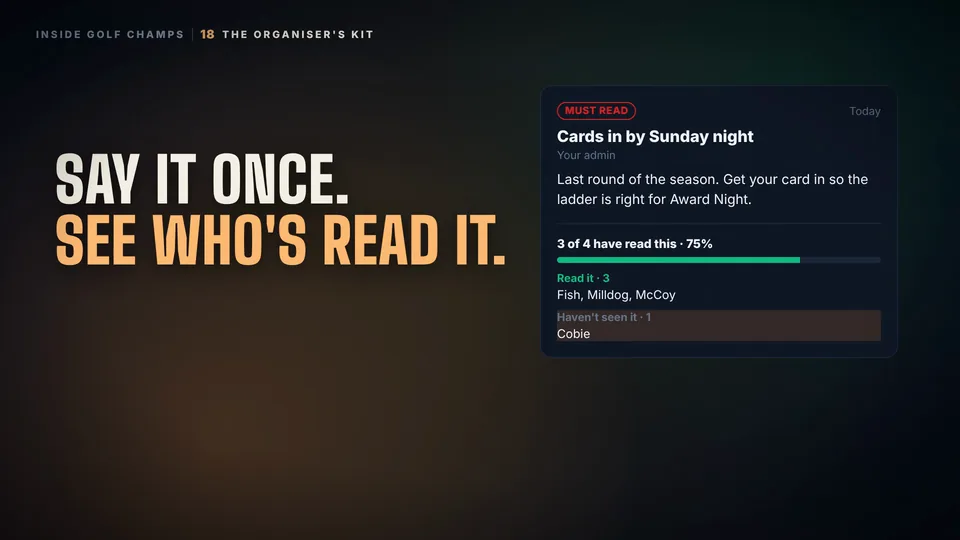 Watch the 25-second filmThe Organiser’s KitBook the round, find a date, see who’s read the notice, and set your group’s rules. The organiser’s whole job, in one place.